How to Set Up a Preventive Maintenance Plan in MaintainNow (Step-by-Step)
Create a recurring preventive maintenance plan in MaintainNow in about 5 minutes. Set the schedule, link the asset, assign a technician, and let work orders generate automatically.
What you'll set up
A maintenance plan in MaintainNow is a recurring schedule that creates work orders for you automatically. Instead of someone remembering that the rooftop HVAC filters are due, the plan creates the work order ahead of time, assigns it to the right technician and puts it in their queue.
In this guide we'll build a real example: a quarterly HVAC filter replacement for a rooftop unit. By the end you'll have a plan that:
- repeats every 3 months on the 1st of the month
- creates the work order 7 days before it's due, so there's time to order filters
- creates one work order for the linked asset
- is assigned to a technician with a set priority
The same steps work for any recurring task: fire extinguisher inspections, pool pump checks, elevator inspections, generator tests and so on.
Before you start: add the equipment you want to maintain under Assets. You'll link it to the plan in Step 3.
Step 1: Open Maintenance Plans and click Add Plan
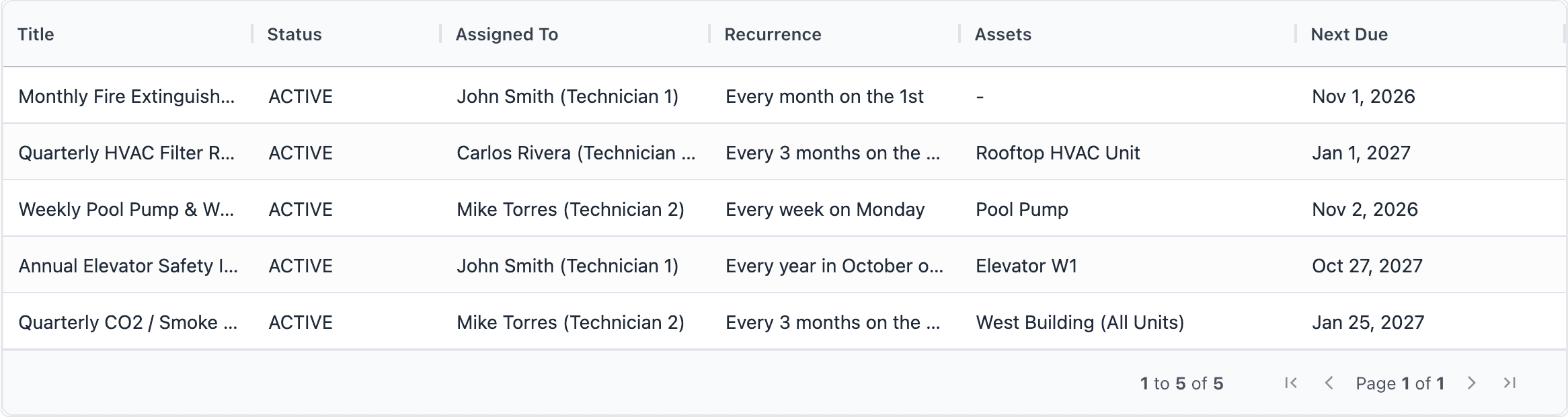
In the left sidebar, under Work, click Maintenance Plans. You'll see every plan with its status, assignee, recurrence, linked assets and next due date.
Click + Add Plan in the top-right corner to open the New Maintenance Plan screen.
Step 2: Name the plan and set the schedule
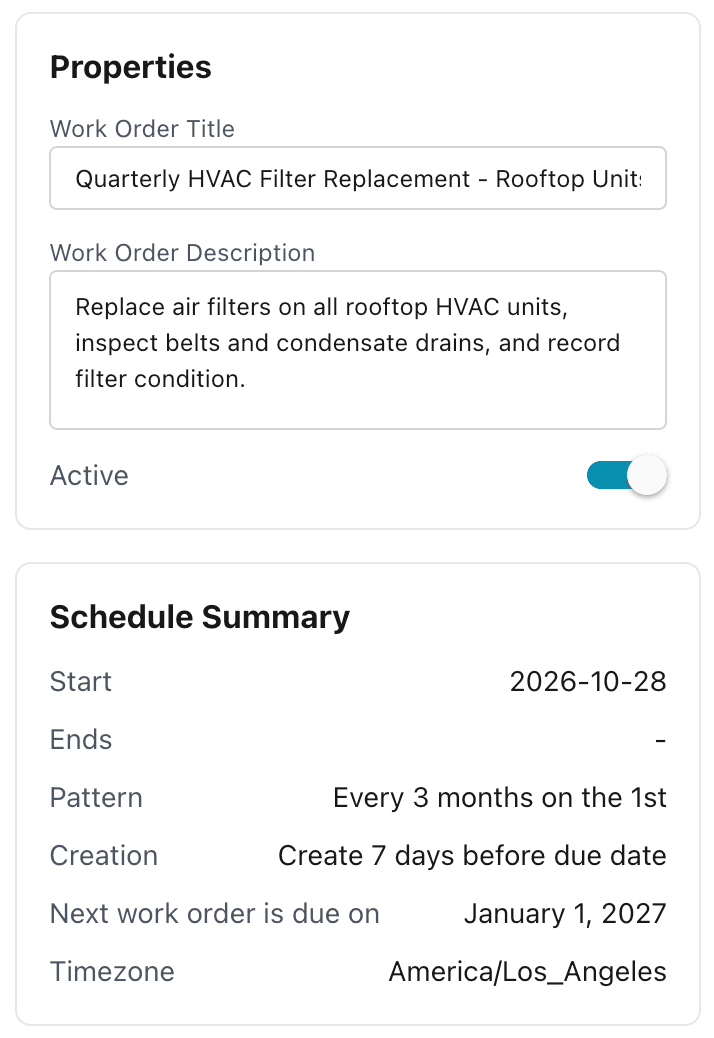
In the Properties panel on the left, enter:
- Work Order Title: what technicians will see on each work order, e.g. Quarterly HVAC Filter Replacement - Rooftop Units
- Work Order Description: what the job involves, e.g. replace the air filters, inspect belts and condensate drains, and record filter condition
Leave Active switched on so the plan starts generating work orders.
Then, on the Schedule tab:
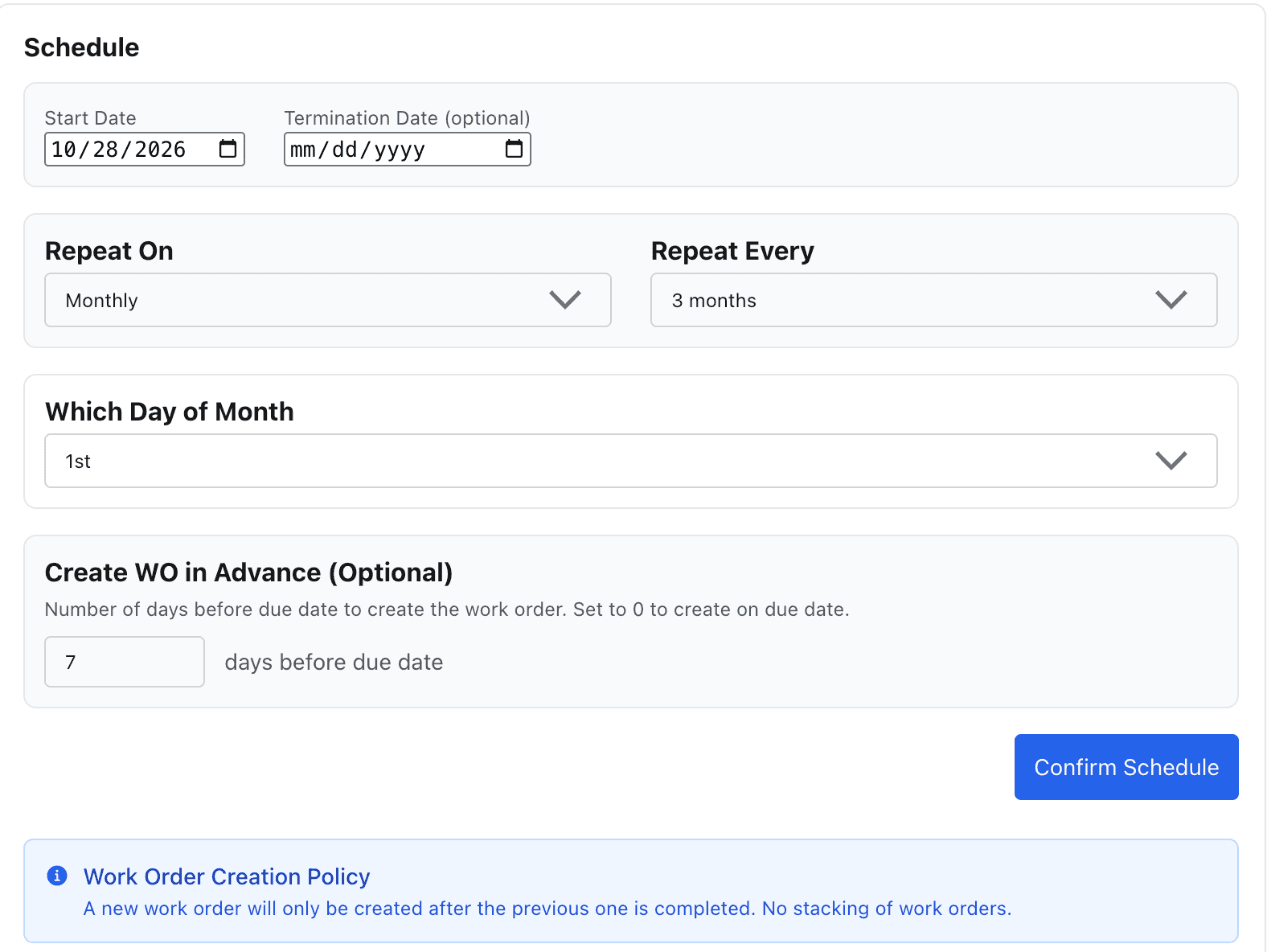
- Check the Start Date. Add a Termination Date only if the plan should stop on a specific date.
- Set Repeat On to Monthly and Repeat Every to 3 months.
- Set Which Day of Month to 1st.
- Under Create WO in Advance, enter 7 days. Enter 0 to create the work order on the due date instead.
- Click Confirm Schedule. Schedule changes don't apply until you confirm them.
The Schedule Summary panel (shown above) updates straight away. It shows the pattern (Every 3 months on the 1st), when work orders will be created (7 days before due date) and the date of the next work order. Check it before moving on: it's the quickest way to catch a wrong interval.
MaintainNow only creates the next work order after the previous one is completed, so overdue PMs don't stack up into a pile of duplicates.
Step 3: Link the asset
Open the Assets tab. Under Generate work orders with, choose One work order per asset, then click Add Asset and select the equipment. Here, that's the Rooftop HVAC Unit.
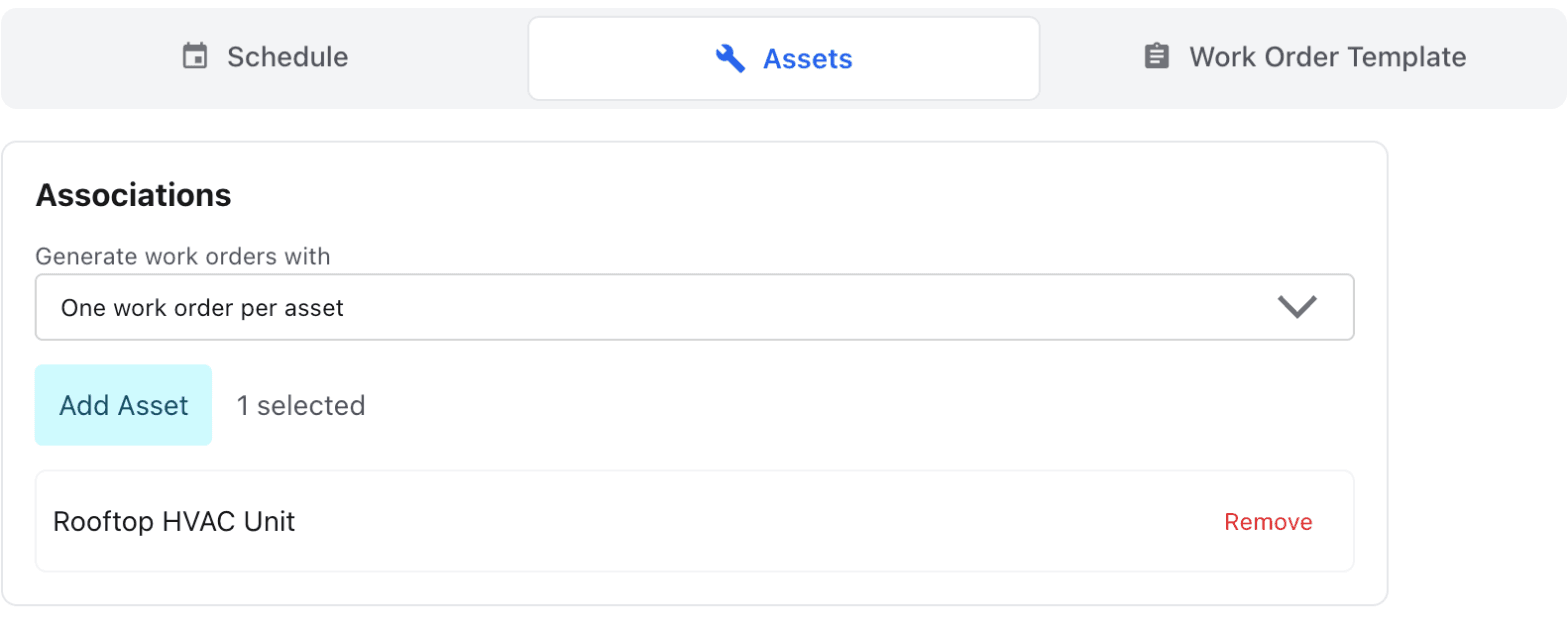
Linking the asset means every completed PM is recorded in that asset's history, which helps when you're deciding whether to repair or replace it. If you add several assets, each one gets its own work order, so you can track them separately.
If the task isn't tied to a specific piece of equipment, choose No assets instead.
Step 4: Assign a technician and set the priority
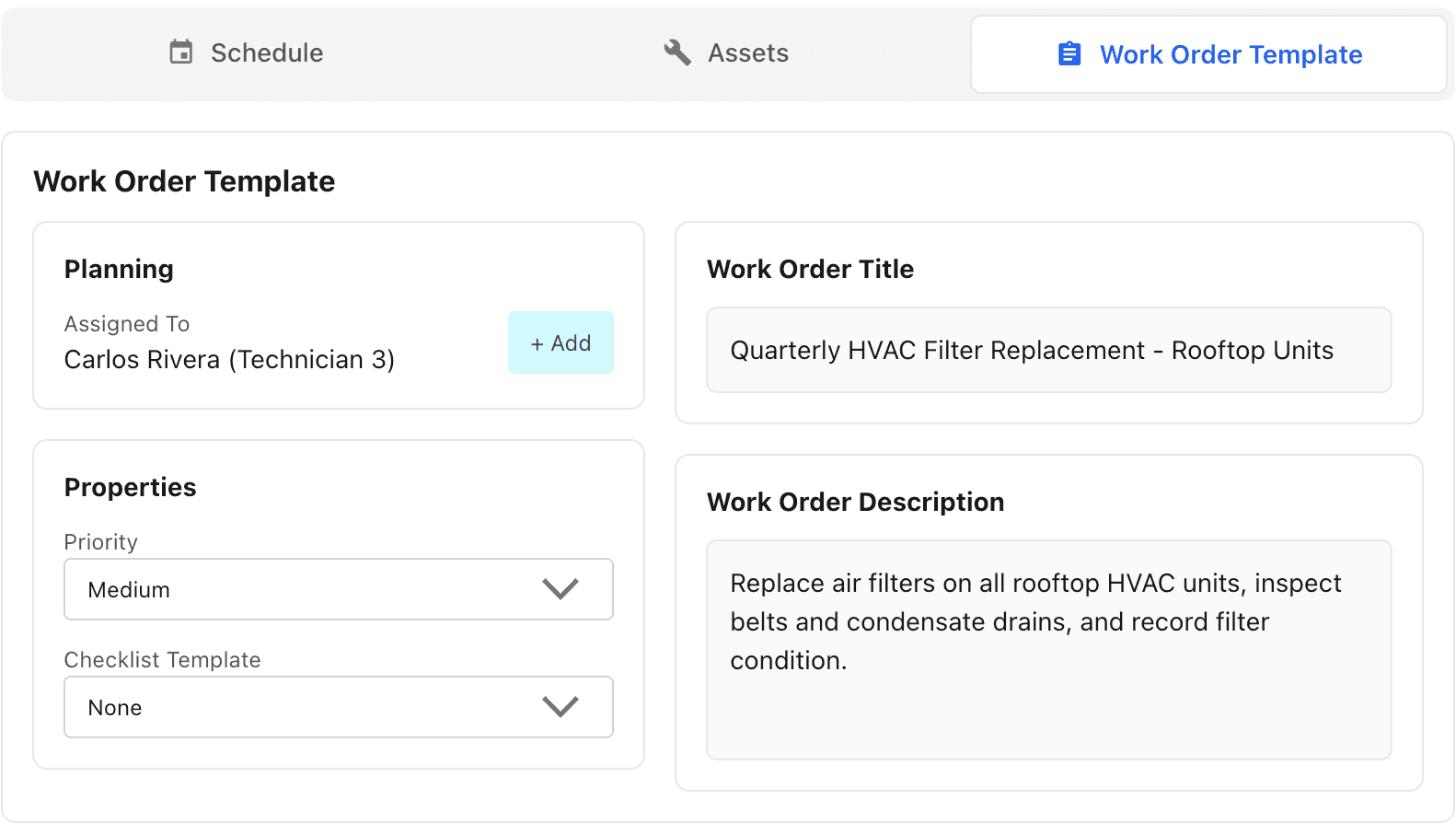
Open the Work Order Template tab. This is the template every generated work order copies.
- Under Planning, click + Add next to Assigned To and choose the technician.
- Under Properties, set the Priority (Low, Medium or High).
- Optionally, pick a Checklist Template so technicians work through the same steps every time.
When you're happy, click Save in the top-right corner.
Step 5: Review the saved plan
After you save, MaintainNow opens the Maintenance Plan Details page. The Summary shows that the plan is active, the trigger and how many days in advance, the next due date and the recurrence.
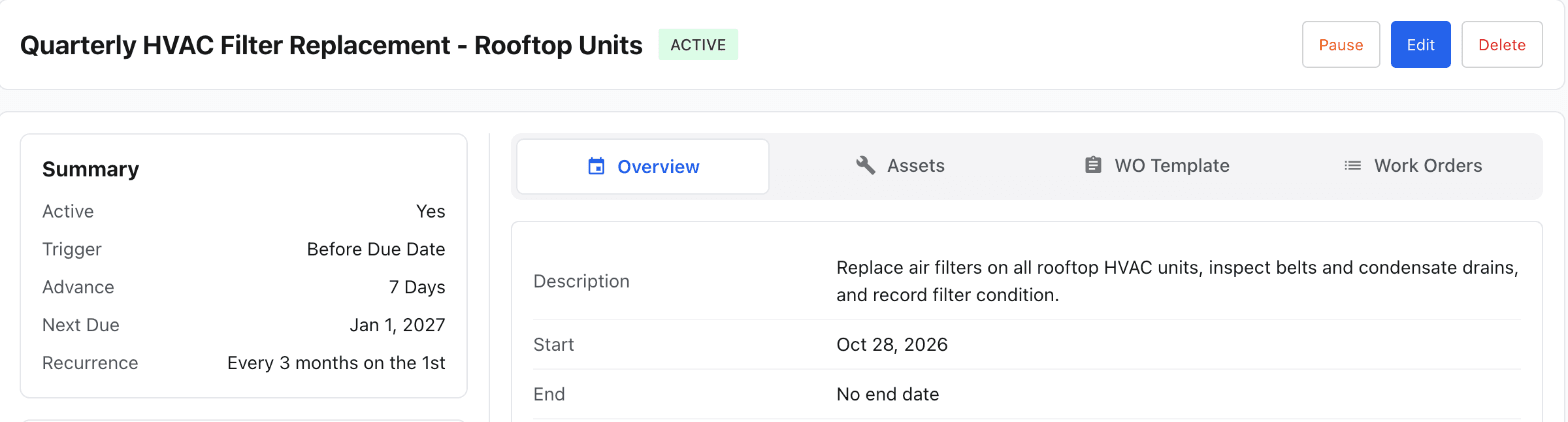
From here you can Edit the plan, Pause it (useful when equipment is offline for a season) or open the Work Orders tab to see every work order the plan has created.
Back on Maintenance Plans, the new plan appears in the list with its assignee, recurrence, asset and next due date.
What happens next
You don't have to do anything else. Seven days before each due date, MaintainNow creates the work order and assigns it to your technician. Upcoming and overdue PMs also appear in the Preventive maintenance card on the Home dashboard, so you can see at a glance what's slipping.
Tips for a PM program that holds up
- Start with the equipment that hurts most when it fails. HVAC, life-safety systems and anything customers or residents notice. Add the rest gradually.
- Use advance days for anything that needs parts. A week's notice gives time to order filters, belts or batteries.
- Write the description for the newest technician. A clear description, or better a checklist template, keeps the job consistent whoever picks it up.
- Review your schedule once a year. If a task keeps being completed with "no issues found", the interval may be too frequent. If you're repairing between PMs, it may be too long. Learn more about building a maintenance schedule.
Try it in your own facility
Setting up your first plan takes about five minutes. Start a free MaintainNow trial and build a schedule for the equipment you look after.
Set this up in your own facility
Start a free MaintainNow trial and follow these same steps with your own equipment.
Download the Mobile App:


✅ No credit card required • ✅ 30-day money-back guarantee • ✅ Setup in under 24 hours