Interactive Floor Plans for Maintenance: Pin Equipment and See Open Work Orders on a Map
Upload your building floor plans, pin assets and locations on them, and see open work orders right on the map. Nobody hunts for equipment again.
Picture this: a new technician is sent to the boiler on floor 2 of the West Building. Instead of asking around, they open the floor plan in MaintainNow: the boiler is pinned in the mechanical room, with a red badge for the open work order waiting there. They know where to go and what's waiting for them before they leave the shop.
In about 10 minutes you'll have:
- Your building drawings in MaintainNow, one floor plan per floor, site or wing.
- Equipment pinned where it really is, with markers linked to assets, locations, parts or people.
- Open work orders on the map, with a badge on every marker that has open work.
- A list of that work next to the map, with status, priority, due date and technician.
Try it with your own floor plans today.
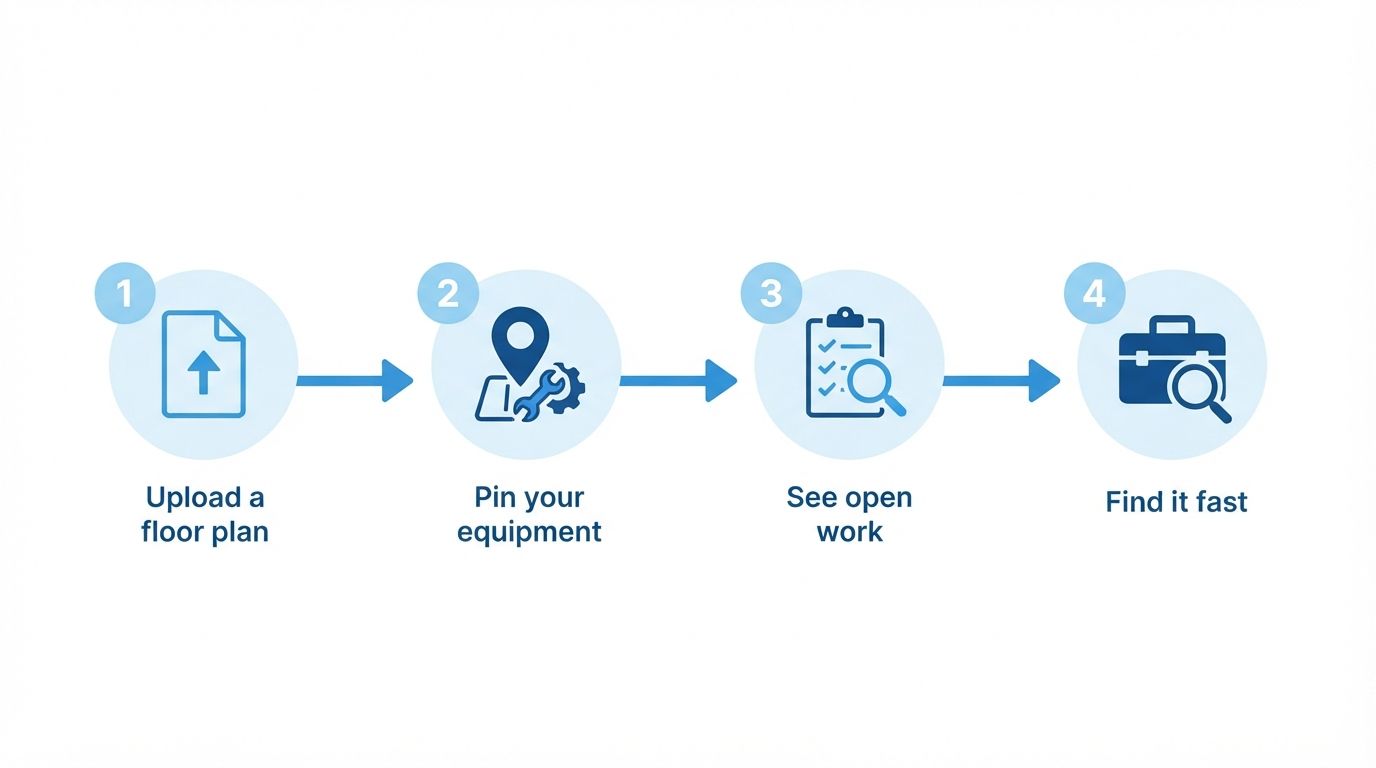
Illustration: from building drawing to a live maintenance map.
Before and after
Without floor plans in your maintenance system, the location of shut-off valves, panels and equipment lives in old drawings and in the heads of long-time staff. New technicians and contractors waste time searching, and nobody can see at a glance where the problems are.
With MaintainNow, your facility maintenance team sees each floor with its equipment pinned on it, and the map shows where open work is waiting.
1. Upload a floor plan
Open Floor Plans in the MaintainNow web app and click Add Map. Give it a Map name (here West Building - Floor 2), an optional description, the Location it belongs to and tags, then upload the Floor plan image (JPEG or PNG). A scanned drawing, a PDF exported as an image or a photo of the fire escape plan all work.
2. Pin your equipment
On the floor plan, click Add marker, choose what the marker links to (Asset, Location, Part, User or Custom) and click the spot on the plan. Pick the linked record, add a label and click Save markers. Markers can be dragged to a new spot later with Edit markers.
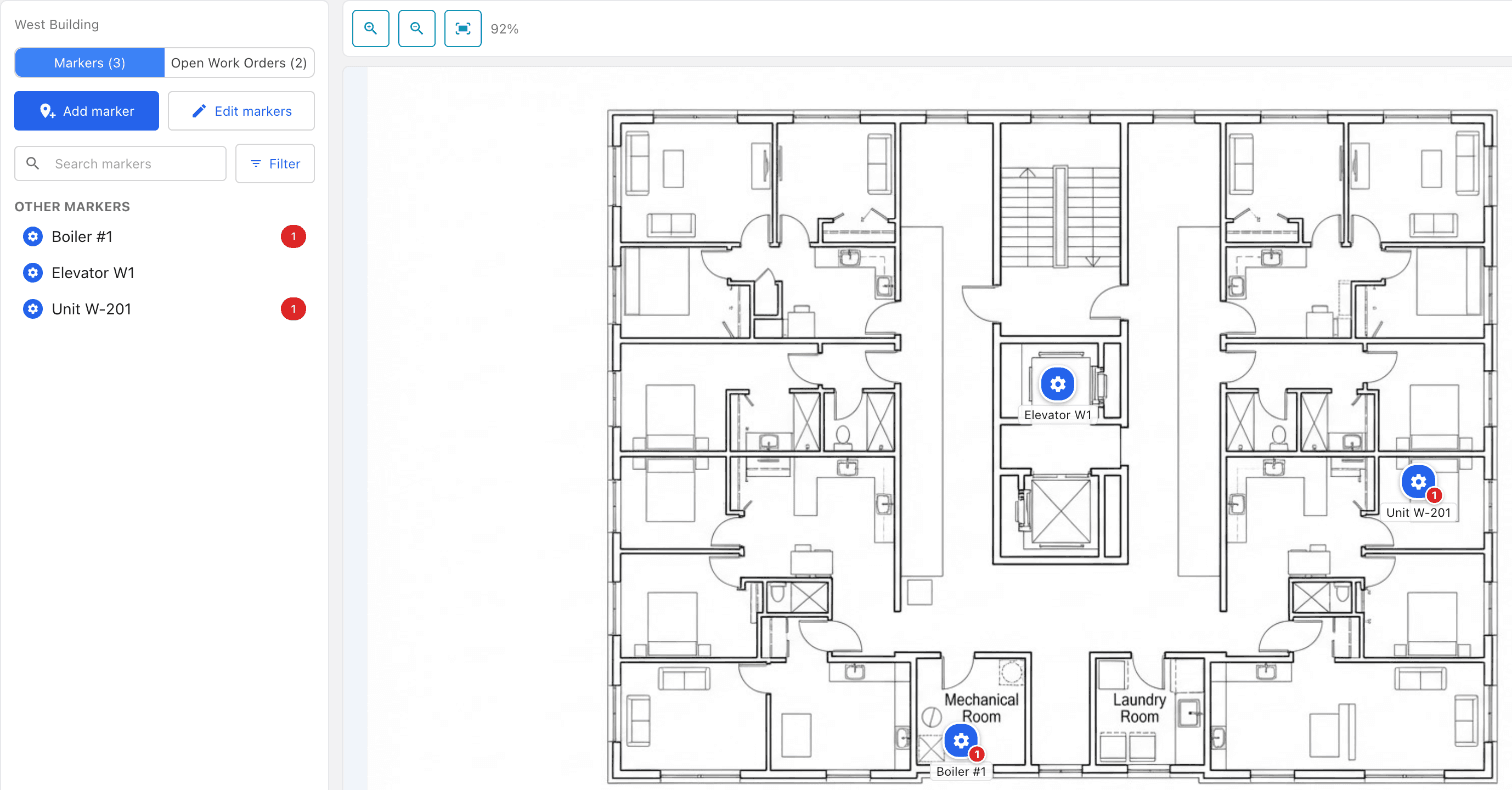
The marker list on the left shows every marker on the floor, and you can search and filter it. Marker styles let you give each kind of equipment its own icon and color, for example red for fire safety and blue for plumbing.
3. See open work orders on the map
Markers linked to equipment with open work show a red badge with the count. The Open Work Orders tab lists that work grouped by marker, with status, priority, due date and the assigned technician, so you can see which parts of the building need attention.
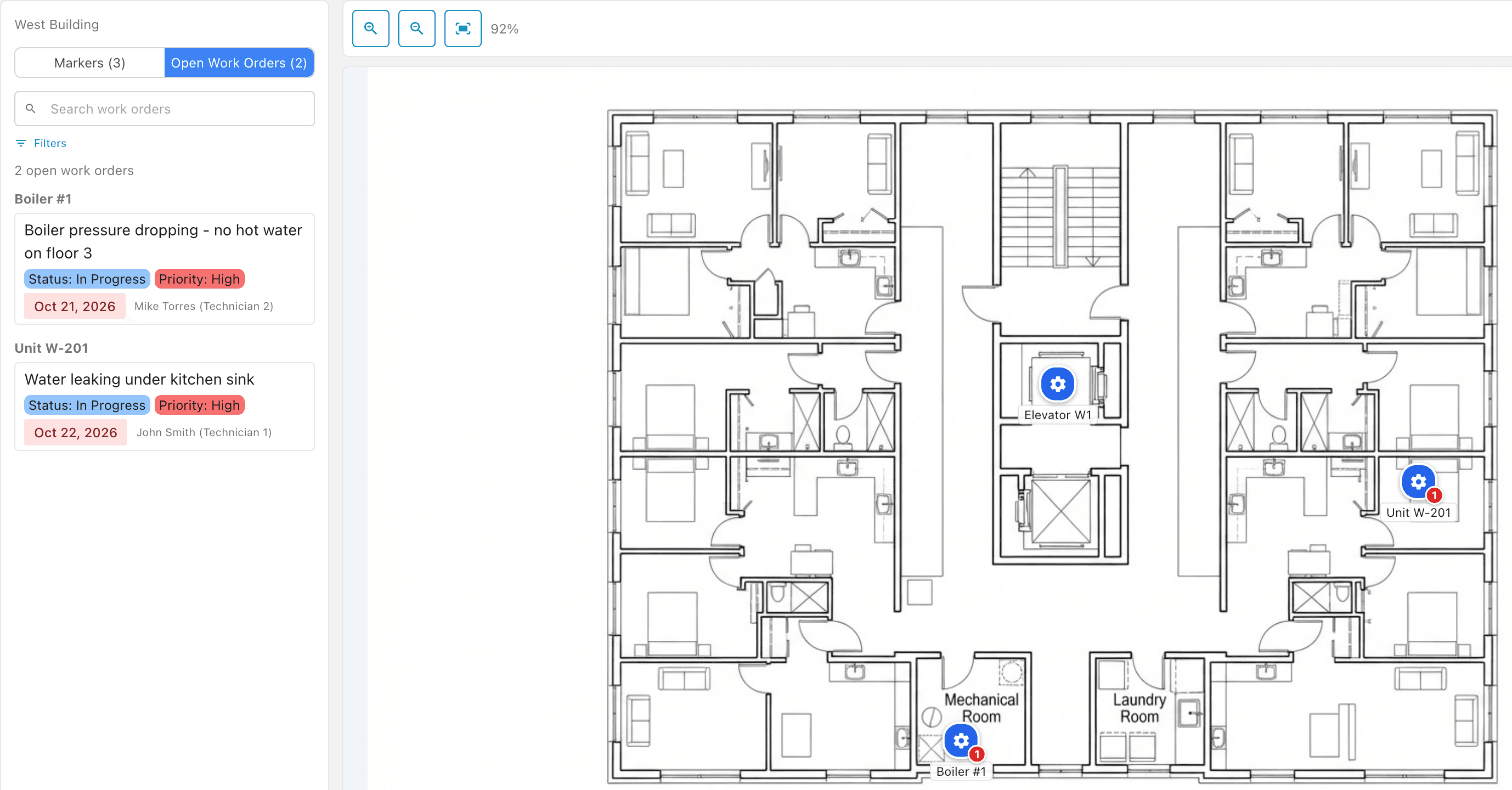
Click a marker to see its details and open the linked asset or location, with its full maintenance history.

Illustration: walking a colleague through the floor before a job.
Questions people ask
Can I upload building floor plans to MaintainNow?
Yes. Floor Plans accepts JPEG or PNG images of floor plans or site drawings, and you can add as many maps as you need, each linked to a location.
What can I pin on a floor plan?
Markers can link to an asset, a location, a part or a user, or be a custom marker with your own label.
Can I see work orders on the floor plan?
Yes. Markers for equipment with open work orders show a badge with the count, and the Open Work Orders tab lists that work with its status, priority, due date and assignee.
Can I customize marker icons and colors?
Yes. Marker styles let you set an icon and color for each kind of marker, optionally limited to certain asset categories.
Where are floor plans available?
Floor plans are in the MaintainNow web app.
Related guides
- Track equipment maintenance history with QR codes
- Import your asset list from Excel
- How to track overdue work orders and maintenance backlog
Put your building on the map
Upload one floor and pin the equipment people always struggle to find.
Start free with MaintainNowSet this up in your own facility
Start a free MaintainNow trial and follow these same steps with your own equipment.
Download the Mobile App:


✅ No credit card required • ✅ 30-day money-back guarantee • ✅ Setup in under 24 hours