Plan Your Maintenance Week on a Drag-and-Drop Scheduling Board
See every technician's week on one board. Drag unscheduled work orders onto a person and a day, and they're notified on their phone straight away.
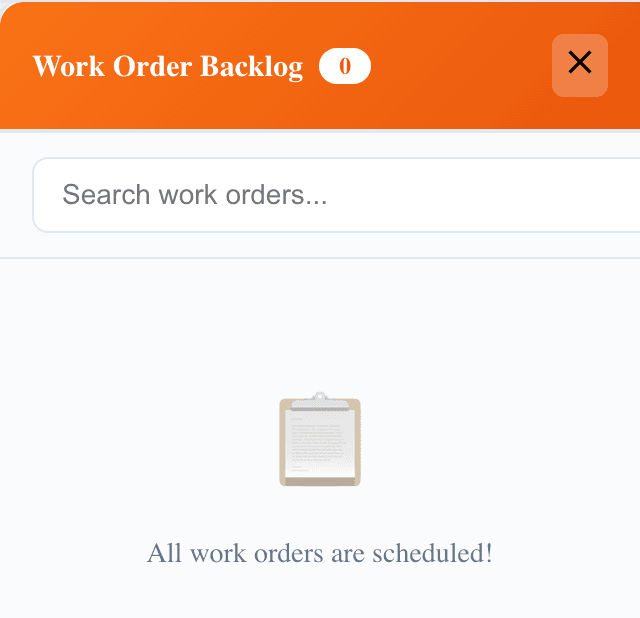
Picture this: it's Thursday afternoon and three jobs have no one on them: an elevator sensor replacement, an air handler inspection and a carpet clean. You open the scheduling board, drag each one onto a technician and a day, and you're done. Each technician gets a notification on their phone, and the backlog says "All work orders are scheduled!"
In about 5 minutes you'll have:
- Your whole team's week on one screen, one row per person and one column per day.
- A backlog of work that isn't scheduled yet, so nothing slips through.
- Drag-and-drop scheduling that sets the technician and the due date in one move.
- Technicians notified instantly by push notification and email.
There's a free plan, so you can try it with your own team today.
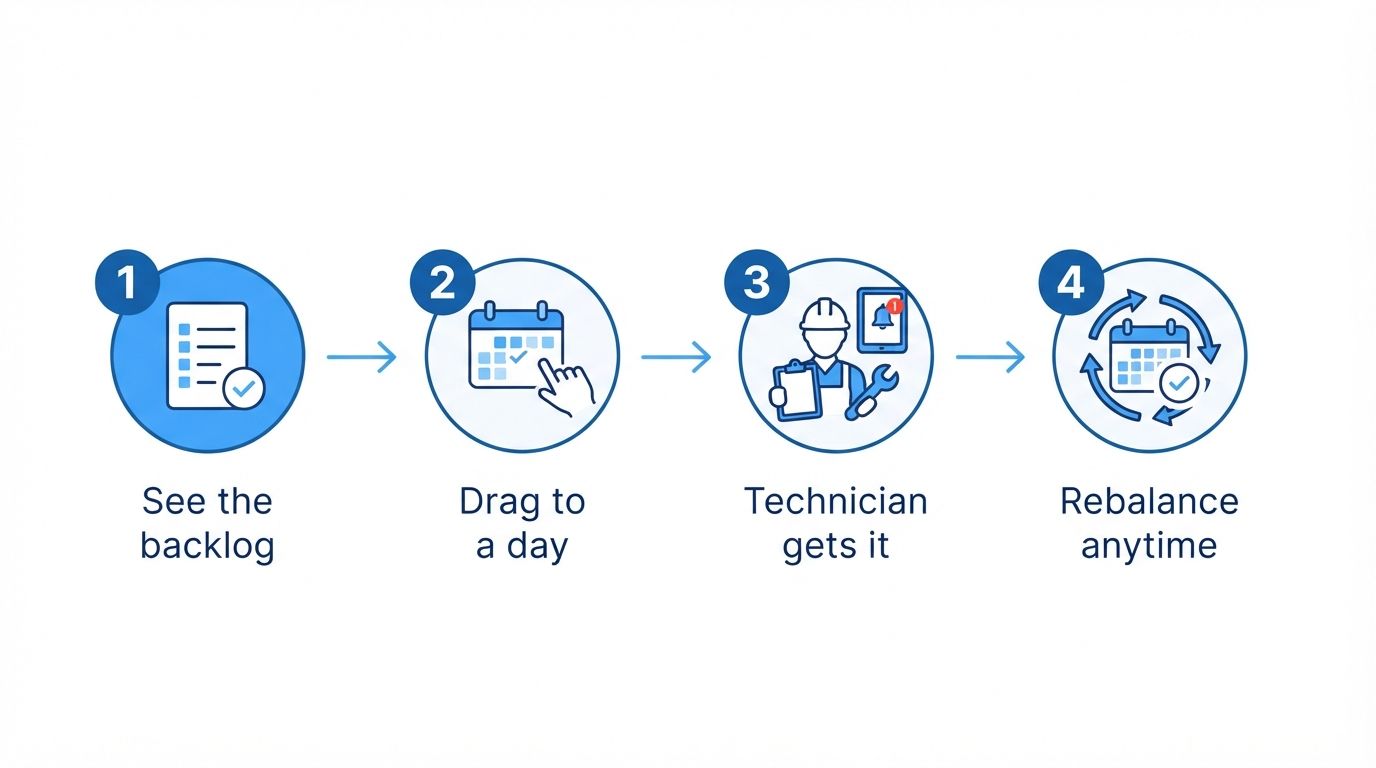
Illustration: from backlog to a planned week in four steps.
Before and after
Without a scheduling board, the week's plan lives on a whiteboard or a spreadsheet that's out of date by Tuesday. Some technicians are overloaded, others are waiting for work, and unassigned jobs sit in an inbox until someone complains.
With MaintainNow, the plan and the work orders are the same thing. Move a card and the work order updates, the technician hears about it, and everyone sees the same schedule. That's maintenance planning and scheduling without the whiteboard.
1. See what needs scheduling
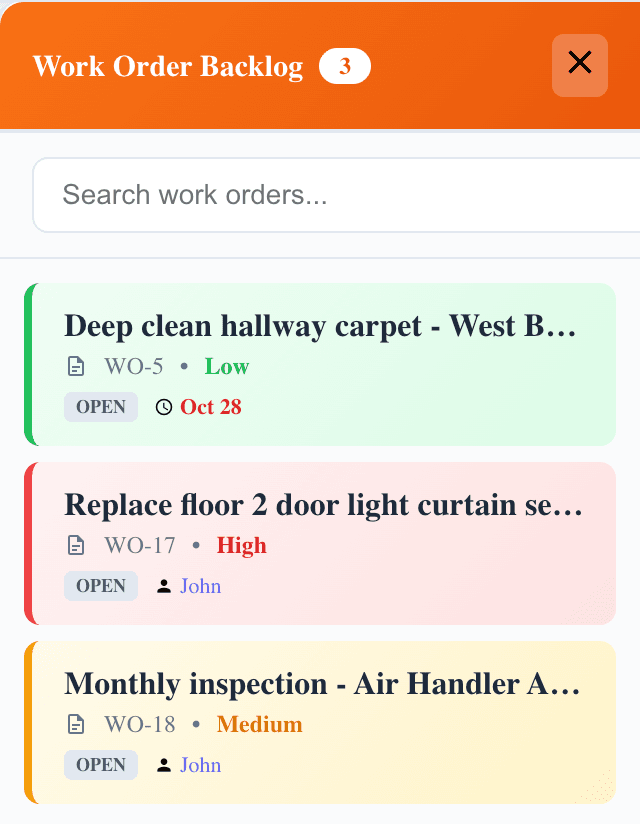
Open Scheduling Board. The Work Order Backlog on the right lists every open work order that doesn't have a technician or a due date yet, with its priority and status. Use the search box to find a job quickly.
2. Drag work onto a person and a day
Drag a card from the backlog onto a technician's row, under the day it should happen. MaintainNow assigns the work order to that person and sets its due date to that day. Already scheduled work can be dragged to another day or another technician the same way, so balancing the workload takes seconds.
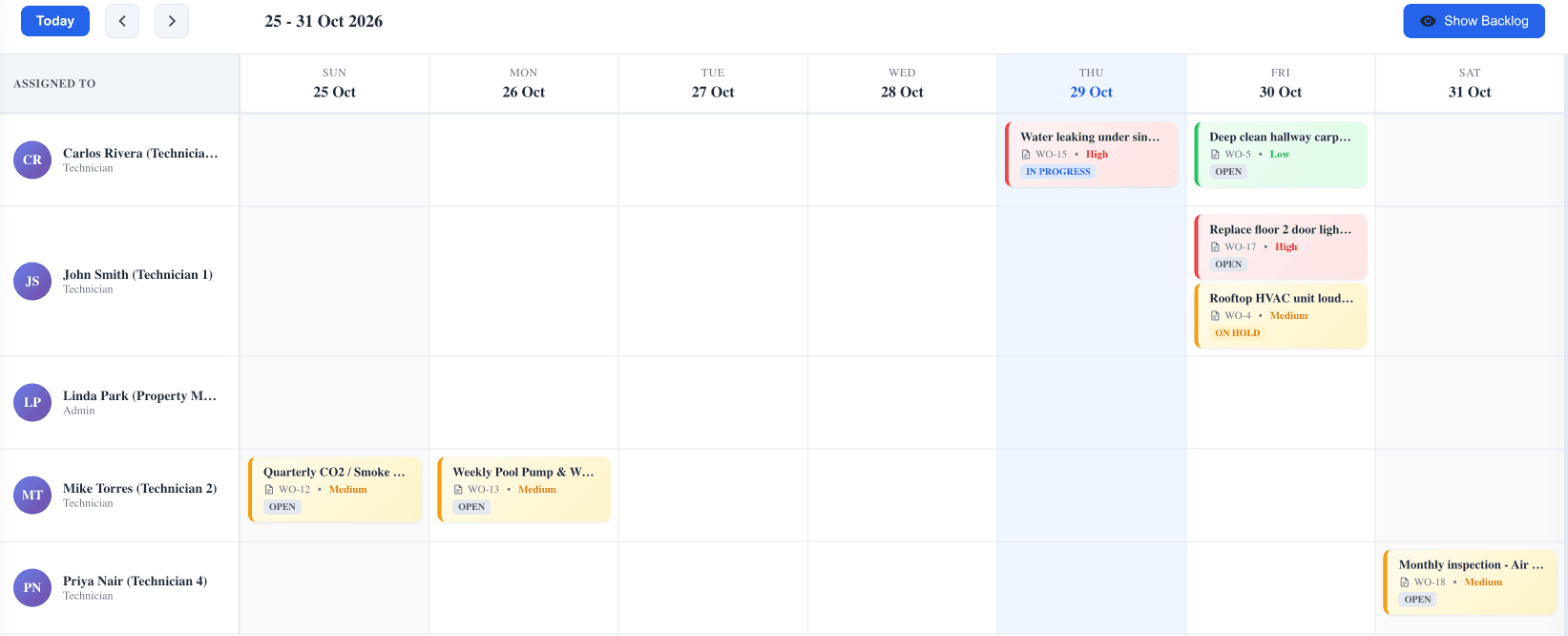
Each card shows the title, work order number, priority and status, color-coded so high-priority work stands out. Use Today and the arrows to move between weeks.
3. Technicians get it on their phone
As soon as you drop a card, the technician receives a push notification and an email. In the MaintainNow app, the work order shows up with its new assignee and due date.
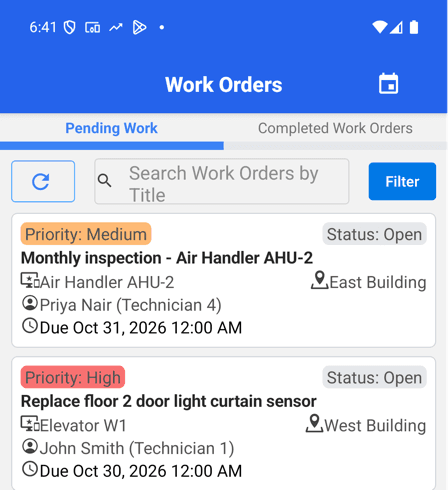

Illustration: planning the week in minutes instead of an afternoon.
Questions people ask
Does MaintainNow have a maintenance scheduling board?
Yes. The Scheduling Board shows your team members as rows and the days of the week as columns, with every scheduled work order on it.
How do I schedule a work order to a technician?
Drag it from the Work Order Backlog onto the technician's row under the right day. That sets both the assignee and the due date.
Is the technician notified when I schedule work?
Yes. They get a push notification on the MaintainNow app and an email.
Which work orders appear in the backlog?
Open work orders that don't have an assigned technician or a due date yet.
Can I move work between technicians?
Yes. Drag a scheduled card to another person's row or another day and the work order updates.
Related guides
- Create and assign a work order in under a minute
- Maintenance KPI dashboard: overdue work, MTTR and team performance
- Automate preventive maintenance in 5 minutes
Plan next week in five minutes
Put this week's work on the board and see who has room.
Start free with MaintainNowSet this up in your own facility
Start a free MaintainNow trial and follow these same steps with your own equipment.
Download the Mobile App:


✅ No credit card required • ✅ 30-day money-back guarantee • ✅ Setup in under 24 hours